



Your first 10 minutes
1. Create your account (1 min)
Sign up in just a few clicks (via email or your Google account). Your main account is your central hub where you manage your quizzes, sessions, and licenses.
2. Choose your questions (1-2 min)
Several options available (can be combined):
- Browse the quiz library provided by the team;
- Build your own quiz by selecting questions from various existing quizzes;
- Create your own questions (text, image, blind test, multiple choice, open answer, reordering, "guess the next part," Tempo Quiz, etc.);
- Import a YouTube playlist in one click (the playlist must not be private during import);
- Search for questions in the question libraries using a ChatGPT-style prompt. (Note: No questions are generated by AI!).
💡 Tip: For musical questions, we recommend YouTube Premium to avoid ads.
3. Create your live game (30 s)
A game (partie) = your container. This is where you define:
- One or more rounds (you can mix several quizzes or questions within a single round);
- The response time (from 10s to 120s);
- The mode: Q&A, Categories, or Drawing;
- The type (classic Timer rules, point loss, Battle Royale, Buzzer, One vs All, Flexi Quiz, All Wrong);
- Whether or not to enable power-ups.
Before launching, you choose how the game will be played: Live with Host (you control everything, all modes available), Live Automated (ZeQuiz handles the hosting, multiple choice only), or Solo (each player plays at their own pace over 1 day – 1 month, ideal for social media). Each mode has its own constraints and options: see the dedicated "Game Modes" page for the full comparison.ois, idéal pour les réseaux sociaux). Chaque mode a ses contraintes et ses options : voir la page dédiée « Modes de partie » pour le comparatif complet.
4. Launch the session and let players join (30 s)
A game session is the actual launch of a game (players, scores, progress). You can launch multiple sessions using the same game setup.
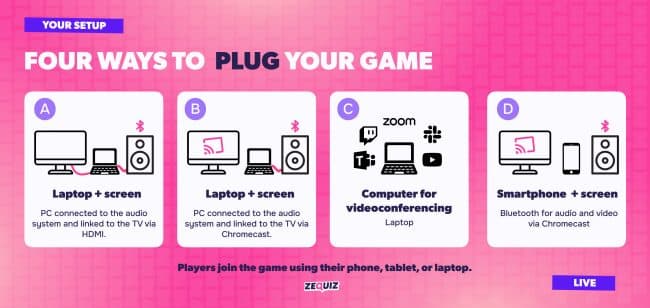
Common steps:
- Click "Start" from the game screen, then configure your game session (or "Continue" an existing one).
- Click "Get Screen URL" → copy/paste into a new window to display on the TV (or use the Chromecast button).
- Click "Get Remote URL" → scan with your smartphone and log in to ZeQuiz: you now control the game from your phone; the computer now serves only as the music and image player.
Players join by scanning the QR code or using the URL displayed on the game screen. They then choose a nickname and a 4-digit access code (useful for recovering their session in case of disconnection).
For more details, see the dedicated "Host a Game" page.
5. Host, then close (live)
- Timer Mode: everyone answers once; speed = points (minimum 5 pts per question); players see immediately if their answer was correct or incorrect.
- Buzzer Mode: the first person to buzz takes the lead; you award a point (to one or several teams); only one buzz per team is allowed until you move to the next question.
- You can display scores at any time (by game or by round), show answers as a chart/word cloud, or skip to a different question regardless of the sequence.
- End of Game: results are available as an image (for Instagram) or an Excel file; scores remain editable by the host (except in Solo mode).